Follow these simple steps to enable Speednexa on your Shopify theme.
Step 1: Open the Speednexa Theme Settings
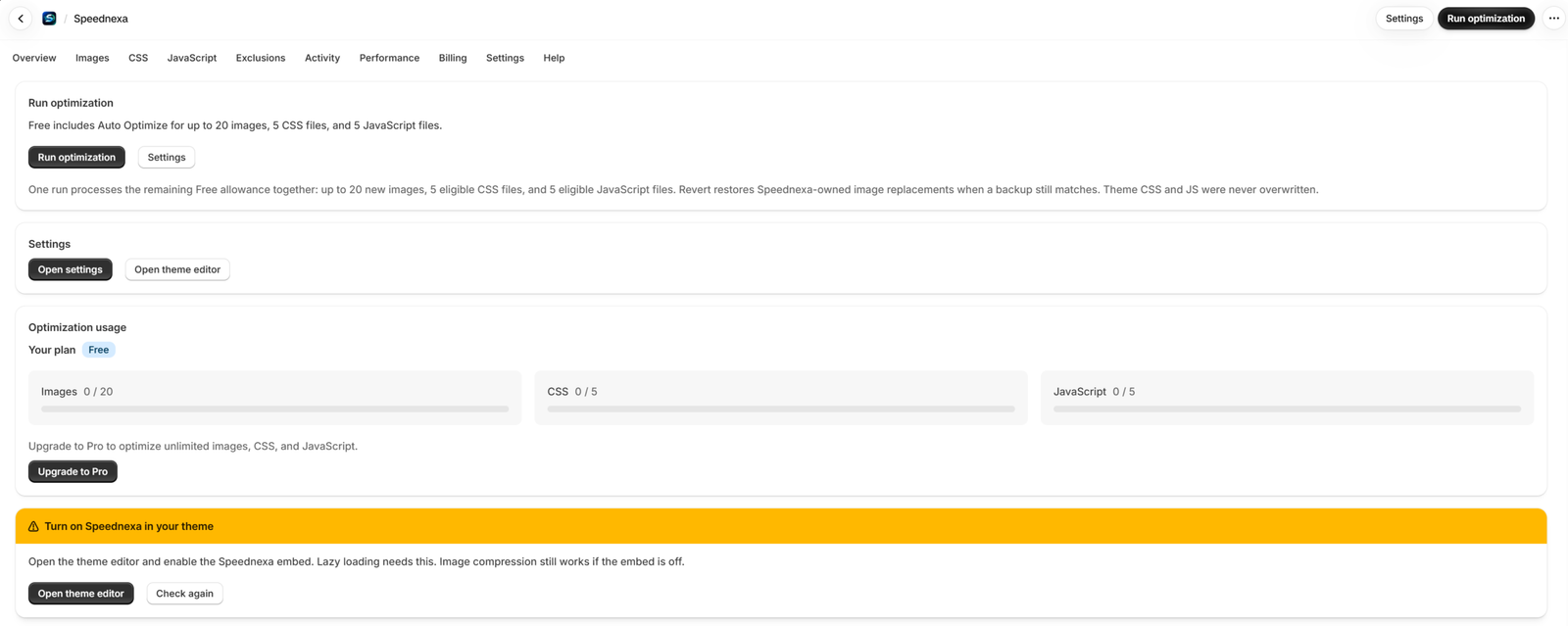
Install the Speednexa app and open it from your Shopify admin.
Go to Settings and click Open Theme Editor.
Step 2: Enable Speednexa in the Theme Editor
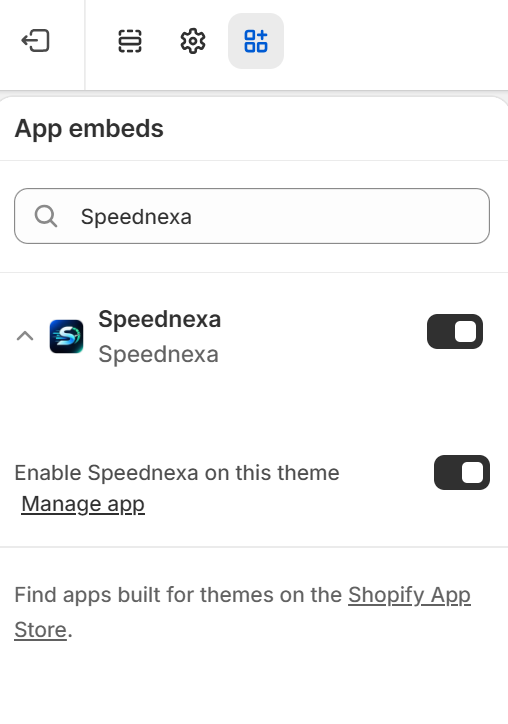
In the Shopify Theme Editor, click the App embeds icon in the top navigation.
Find Speednexa in the list and turn ON the Speednexa toggle.
Important: Make sure the “Enable Speednexa on this theme” toggle is also enabled in the Speednexa app settings. Both toggles need to be turned on for Speednexa to work correctly.
Step 3: Run the Optimization
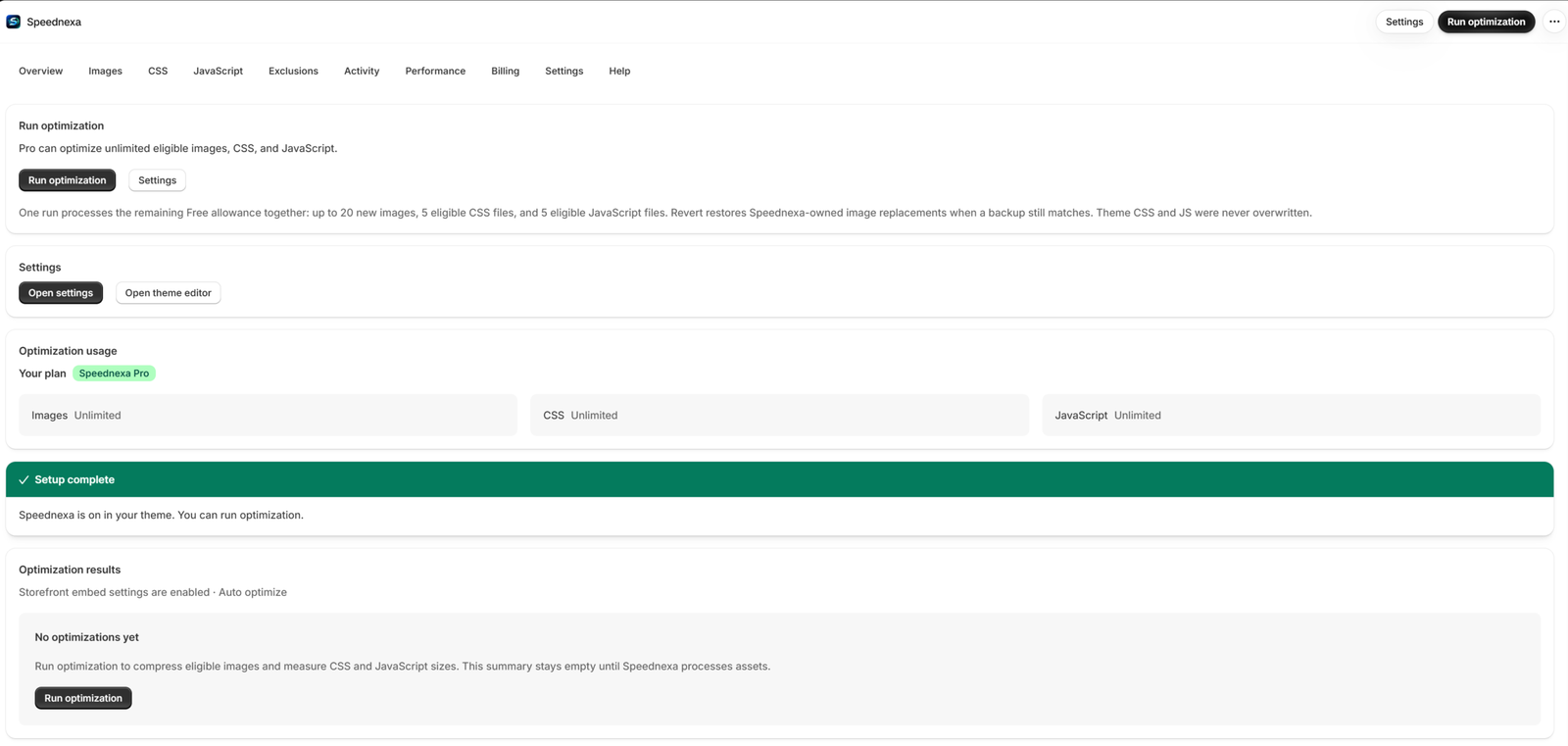
Once you have enabled the Speednexa toggle, your setup is complete.
Now, click Run optimization in the top-right corner of the Speednexa app.
Speednexa will start optimizing your store’s eligible images, CSS, and JavaScript files. Please wait a few minutes while the optimization process completes.
Once finished, you’ll see the Optimization complete message along with your optimization results and the amount of data saved.
🎉 That’s it! Your store is now optimized with Speednexa.
Step 4: Review Your Optimization Results
After the optimization is complete, you can review the detailed results directly in Speednexa.
📊 Analyze Your Store Assets
Speednexa provides a detailed breakdown of the files processed during optimization, including:
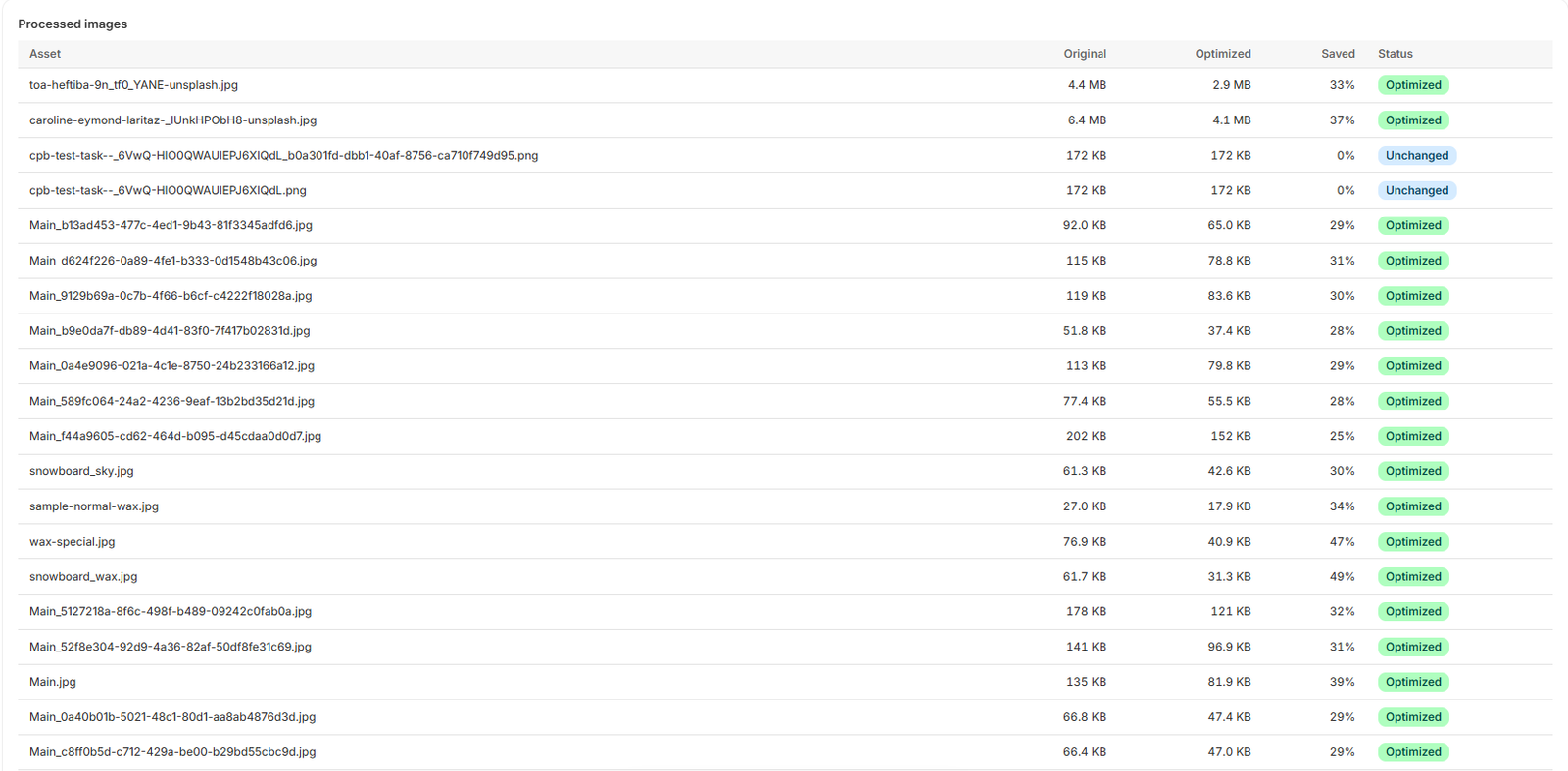
Images — View the original and optimized file sizes and see how much space was saved.
CSS files — Review which stylesheets were optimized and the percentage of size reduction.
JavaScript files — See which JavaScript files were analyzed and whether any changes were made.
Optimization status — Easily identify files that were Optimized or Unchanged.
🖼️ Review Processed Images
The Processed Images section shows each image along with:
Original Size → Optimized Size → Space Saved → Status
For example, an image that was 4.4 MB originally can be reduced to 2.9 MB, saving 33% of its original size. Images that cannot be safely reduced are marked as Unchanged, so Speednexa avoids making unnecessary modifications.
🎨 Review Optimized CSS
The Analyzed Stylesheets section displays the CSS files processed by Speednexa, including the original size, optimized size, and percentage saved.
Each successfully optimized file is marked Optimized.
📋 Check Your Activity
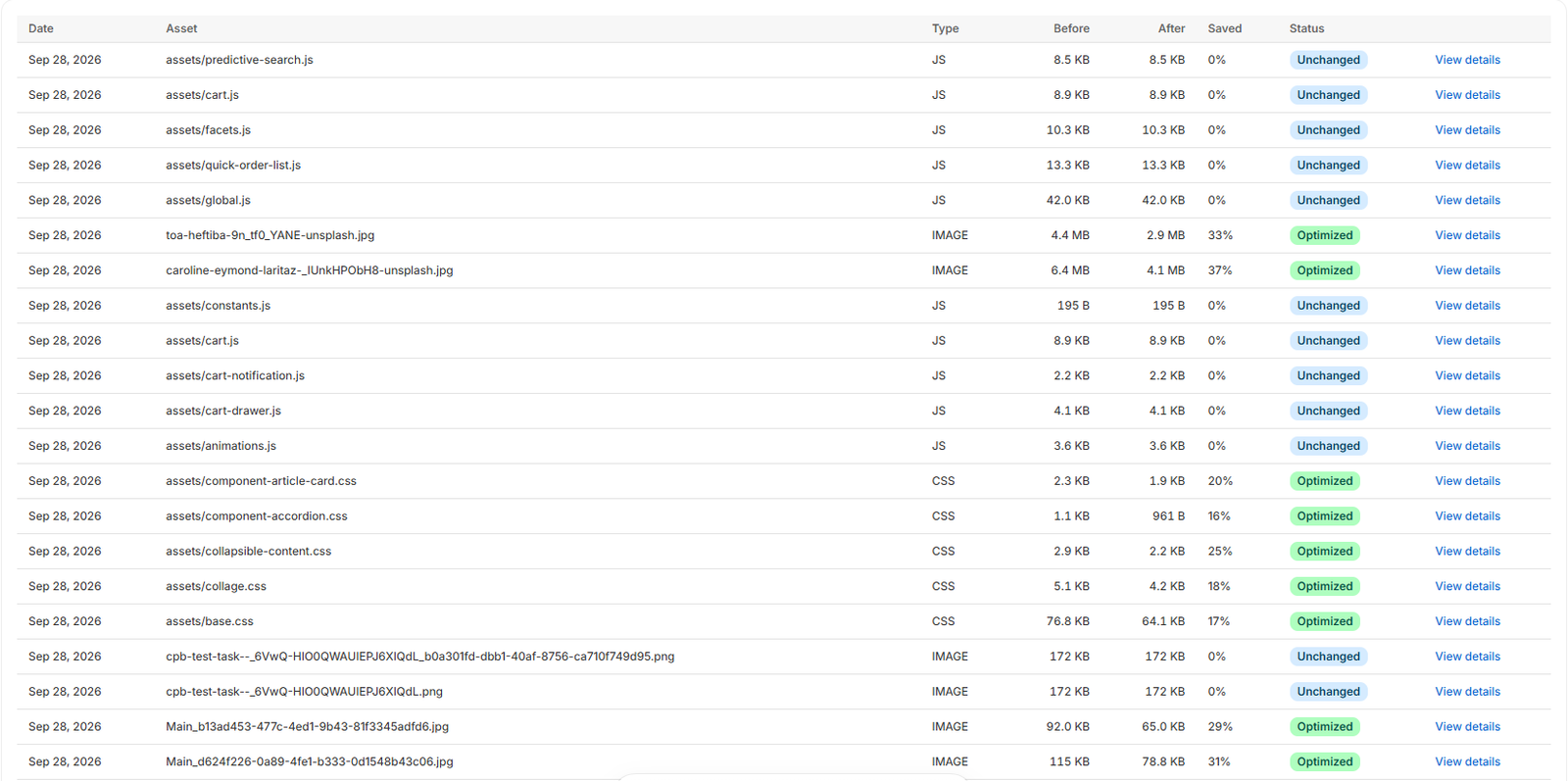
The Activity section provides a complete history of optimization activity, including:
Date of optimization
Asset name
Asset type
Before and after file sizes
Total space saved
Optimization status
View details for individual assets
This makes it easy to see exactly what Speednexa optimized and how much data was saved.
With Speednexa, you can clearly track every optimization and see the impact on your store’s assets.